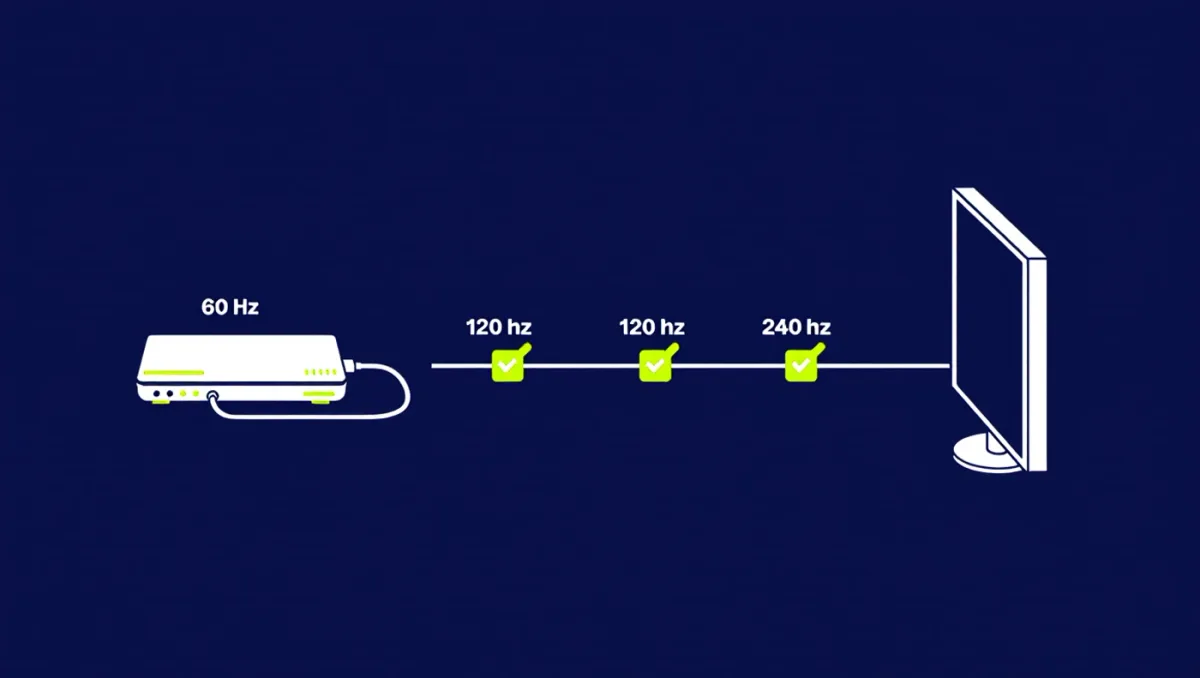
Millions of PS5 owners are playing at 60 frames per second on televisions capable of 120, and almost none of them know it. The reason is rarely broken hardware: it is a chain of settings — HDMI port mode on the TV, HDMI 2.1 enablement on the console, VRR activation in two places — where one silent default breaks the whole path. The PS5 has supported 4K 120 Hz output since launch per Sony's specifications, and its April 2024 system update added 8K-related refinements and VRR improvements, but none of it switches itself on. Here is the full chain, in order, and how to verify each link.
Step one: is your TV's HDMI port actually in full-bandwidth mode?
Most modern TVs ship with their HDMI ports in a compatibility mode that limits bandwidth — enough for 4K 60, not for 4K 120. The fix lives in the TV's settings, and every manufacturer names it differently: Samsung calls it Input Signal Plus, LG calls it HDMI Ultra HD Deep Color, Sony calls it Enhanced HDMI format, TCL and Hisense call it HDMI 2.1 or Enhanced mode. Open the TV's external device or input settings, find the port the PS5 uses, and switch it to enhanced. Then use the correct physical port: on many TVs only two ports carry the full 48 Gbps HDMI 2.1 bandwidth, and on some soundbar-and-TV setups the soundbar's passthrough caps everything below it. Check the TV's manual for which port number is full speed — it is usually port 3 or 4.
Step two: enable the console-side settings
On the PS5, open System Settings, then Screen and Video. Set Video Output Information open on screen while you work — this menu shows exactly what the console detects, including the current resolution, refresh rate, HDR type and VRR status, and it is the ground truth for every other step. Enable 120 Hz Output (set it to Automatic), enable VRR and 'Apply to Unsupported Games' if you want system-level smoothing, and set RGB Range to Full if your TV supports it. For 4K 120, the console may also ask you to accept a slightly reduced chroma — 4:2:2 color instead of 4:4:4 — because 4K 120 with full color exceeds the HDMI link in some configurations. Accept it; the visual cost is imperceptible at gaming distances.
What does VRR actually change?
Variable refresh rate lets the TV redraw in step with the console instead of a fixed 60 or 120 cycle, which eliminates two artifacts: screen tearing, where the image splits mid-frame, and stutter from frames that miss their deadline. The PS5 supports HDMI Forum VRR per Sony's documentation. Where it shines is in games with uncapped or imperfectly capped frame rates — racing titles, open-world games under heavy load — where VRR converts visible judder into invisible flexibility. On a game locked at a steady 60 or 120, VRR does nothing, which is why some players enable it and see no difference; that is the feature working, not failing. The 'Apply to Unsupported Games' toggle forces VRR on titles without native support and helps in some, hurts in a few — test per game.
Game mode and ALLM: the latency pair
Two more TV settings decide input lag. Game mode bypasses most of the TV's image processing, cutting input delay from the 80-120 ms range on some processed modes to the 10-20 ms range modern sets achieve, per manufacturer-measured figures from display reviewers. Auto Low Latency Mode (ALLM) makes the TV switch into game mode automatically when the console starts a game — enable it on both the TV and the PS5, where it lives under Screen and Video settings. The classic mistake: manually enabling a vivid or cinema picture mode for streaming and finding ALLM has been switched off, so the next game session runs with 90 ms of lag and feels muddy for reasons nobody diagnoses.
Which games actually run at 120?
The list is smaller than marketing implies and grows slowly. Per publishers' patch notes, the confirmed 120 fps group includes Fortnite, Call of Duty entries since Black Ops Cold War, Rainbow Six Siege, Destiny 2's crucible at reduced resolution, Gran Turismo 7's VR-adjacent output options, and a rotating set of esports-adjacent titles. The pattern is clear: competitive multiplayer games prioritize frame rate, cinematic single-player games prioritize resolution — a 120 fps patch is rare in story-driven releases. Before buying a TV 'for 120 Hz gaming', check whether the games you actually play have 120 modes; if your library is single-player blockbusters, VRR plus a rock-solid 60 is the more relevant feature.
Verification and final checklist
Run the chain in order: enhanced HDMI mode on the correct TV port; console Video Output Information confirming 3840x2160 at 120 Hz for a supporting game; VRR showing 'On' in the same menu; game mode active with ALLM enabled. Then test with Fortnite or Call of Duty, whose menus display their running frame rate. If the console shows only 60, the fault is nearly always the TV port mode or the cable — use the Ultra High Speed HDMI cable Sony ships in the box, and avoid 8K-labeled cables of unknown origin, where certification matters more than price.
Recommendation: spend twenty minutes on this chain once and the PS5 pays you back every session — 120 fps where games support it, VRR smoothing everywhere else, and input lag low enough that the TV stops being part of your aim.