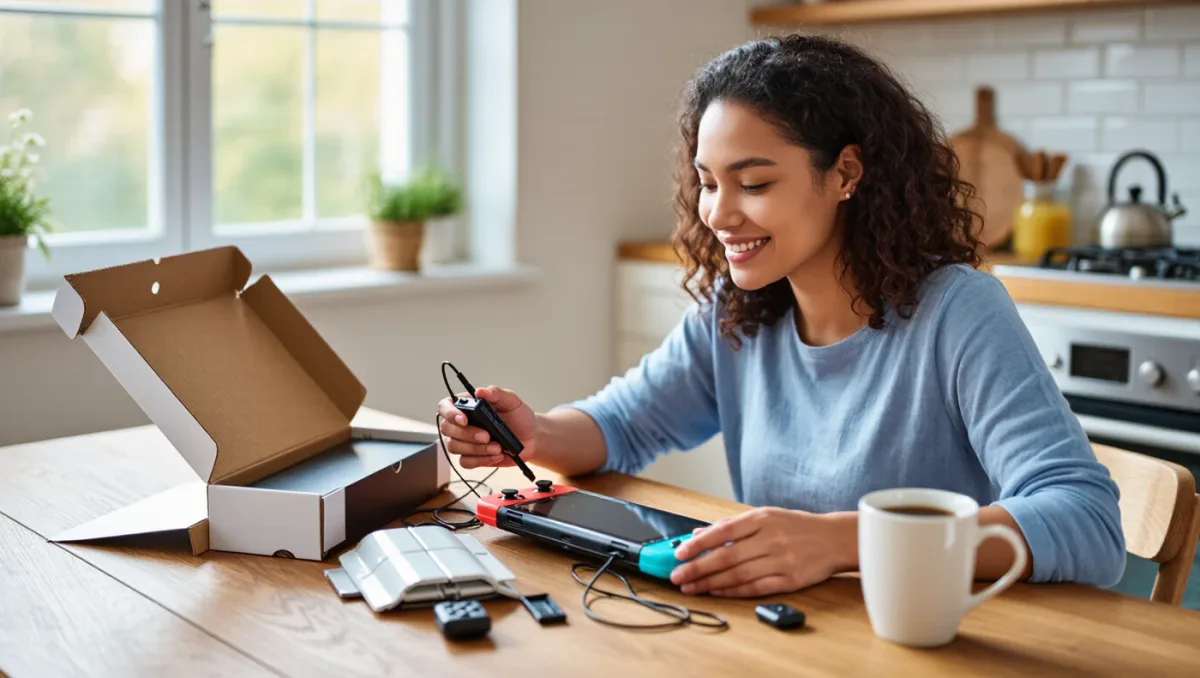
The Nintendo Switch 2 launched on June 5, 2025 at $449.99, and per Nintendo's official spec sheet it carries a 7.9-inch 1080p LCD screen at up to 120 Hz, 256 GB of internal storage and a second USB-C port on the top of the unit. That is a different machine from the 2017 Switch, and it deserves a different setup routine. Skipping these steps is how players end up re-downloading 40 GB games twice or playing their first week at 60 Hz on a 120 Hz panel.
Do you update the system before or after transferring data?
Update first. Nintendo shipped the Switch 2 with launch firmware and has issued multiple system updates since, and the migration tools behave more reliably when both consoles run current software. Go to System Settings, then System, then System Update before you touch anything else. It takes under ten minutes on a decent connection and saves you from the classic trap of starting a transfer that stalls halfway on mismatched firmware versions.
How does the data transfer from an original Switch actually work?
Nintendo offers two paths. The primary path is a local wireless transfer: hold both consoles near each other, and on the Switch 2 pick System Settings, then System, then Transfer Your Data. The second path, added for people who no longer have easy access to their old console, moves save data through Nintendo's servers one game at a time. Local transfer is faster and moves everything in one session; server transfer works but you must repeat it per title. Either way, keep the original console charged and do not factory reset it until you have confirmed your saves and screenshots landed on the new unit.
Which settings do most new owners leave wrong?
Two. First, HDR output: the Switch 2 supports HDR on TV, but the default output handling does not suit every set, and per Nintendo's support documentation you should run the console's built-in HDR output adjustment while following the on-screen brightness targets. Second, the screen's auto-brightness. On handheld mode, auto-brightness dims the 1080p panel aggressively in dim rooms, which some players mistake for a display defect. Turn it off in System Settings, then Screen Brightness, and set brightness manually.
Should you buy a microSD Express card on day one?
Not immediately, but soon. The Switch 2's 256 GB of internal storage fills fast — Mario Kart World alone takes roughly 23 GB per Nintendo's store listing — and the console only accepts microSD Express cards, not the cheaper UHS-I cards that worked in the original Switch. Express cards cost more and, as of late 2025, are sold in capacities from 128 GB to 1 TB. A reasonable day-one compromise: load your first game, check your download queue, and buy the card size your library actually demands rather than guessing.
What should every Switch 2 owner do about the dock?
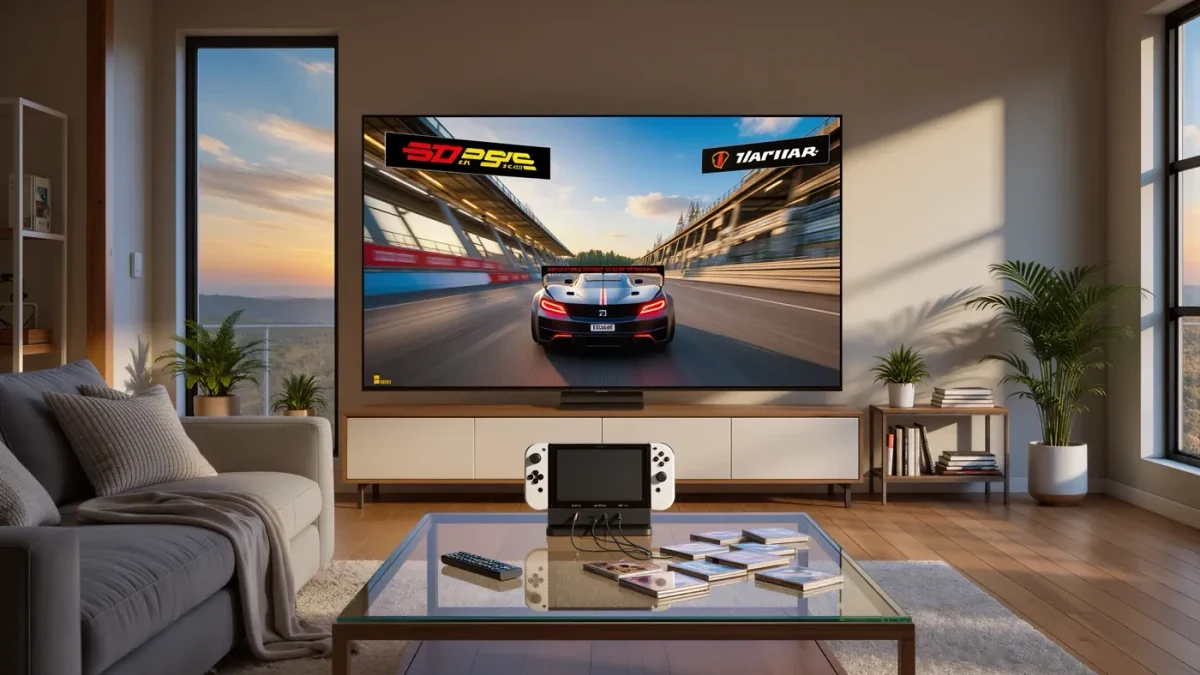
The bundled dock outputs up to 4K 60 with HDR in supported titles, and it is where most people will leave the console. Two practical steps: run the console in docked mode during setup so it applies firmware updates to the dock itself, and if your TV has a 120 Hz game mode, confirm the console's TV output settings show the resolution and refresh rate you expect. Nintendo's support pages note that some TVs need their own firmware updated before full HDR and VRR behavior works, so check the TV manufacturer's site if the image looks off.
How do you set up GameChat and the new C button?
The new C button opens GameChat, Nintendo's voice and screen-sharing layer. It requires an internet connection and, per Nintendo's announcement, Nintendo Switch Online membership for voice features. The console's built-in microphone works out of the box; the separate USB camera is optional. Set your privacy defaults before your friends list migrates over: System Settings, then Online Settings, restricts who can join your chats, which matters if children use the console.
Do your Nintendo Switch Online subscriptions carry over?
Yes. NSO memberships, including the Expansion Pack tier, are tied to your Nintendo Account, not the console. The Expansion Pack adds Switch 2 editions of select classics on top of the N64, SNES, NES, Game Boy and Sega Genesis libraries that existed on the original service. Verify your plan under your account page rather than re-buying anything — a common day-one mistake is purchasing a second membership out of caution.
What about controllers from the original Switch?
Joy-Con 2 controllers ship in the box and attach magnetically, but standard Bluetooth Joy-Con and Pro Controllers from the original Switch connect to the Switch 2 as well. Per Nintendo's compatibility documentation, some features — mouse mode on the new Joy-Con 2, HD Rumble 2 — are exclusive to the new hardware. Pair the old Pro Controller anyway; it is excellent for docked multiplayer sessions where the new Joy-Con 2 grips are reserved.
What is the single most overlooked step?
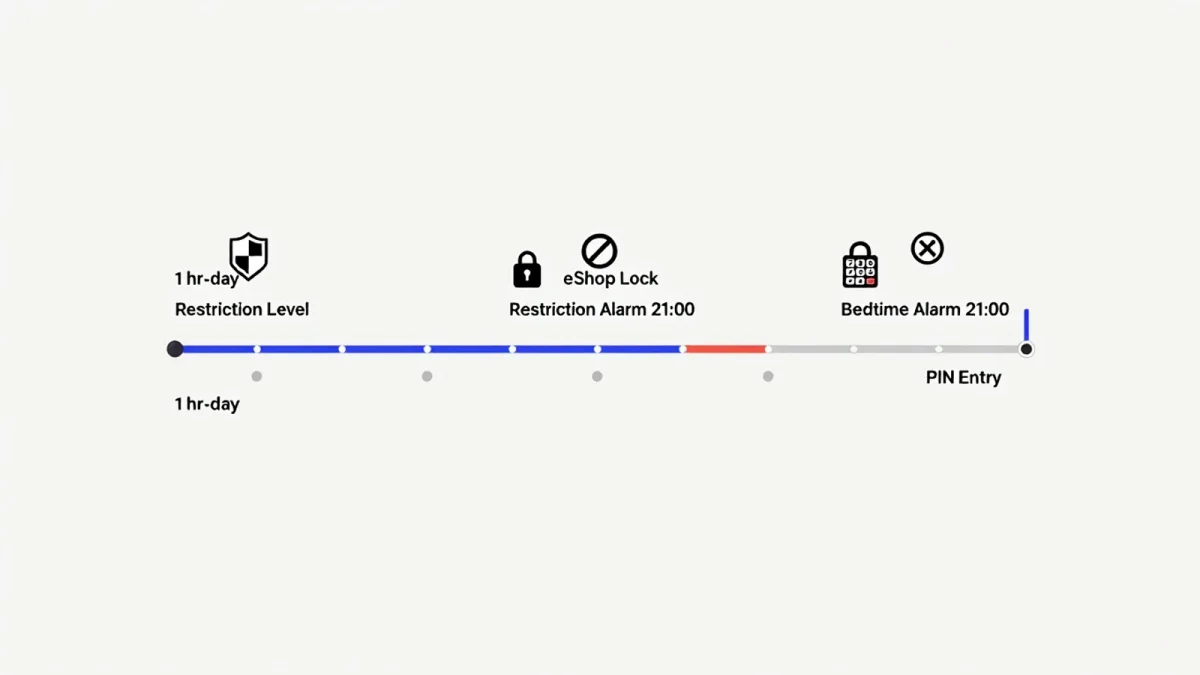
Disable the default 15-minute sleep timer in handheld mode if you play docked and handheld equally. Combined with auto-brightness, the sleep defaults drain sessions into interruption. And check parental controls before handing the console over: the Switch 2's parental control app migrated from the original hardware, but you must re-link the console in the app.
Recommendation: budget roughly 45 minutes on day one — update, transfer, HDR calibration, storage plan, privacy settings — and your Switch 2 will behave like a finished product instead of a work in progress. Everything else can wait until Mario Kart World demands your evening.